> ## Documentation Index
> Fetch the complete documentation index at: https://docs.business.near.com/llms.txt
> Use this file to discover all available pages before exploring further.
# Funding Through near.com
> Learn how to fund a confidential treasury using near.com
[Confidential treasuries](/confidential-treasuries) run on a private shard on NEAR, so assets need to be bridged from public blockchains to the private shard through [near.com](https://near.com/).
For teams that want to manage the bridging process themselves, this guide explains how to fund a confidential treasury through [near.com](https://near.com/).
If you do not want to interact with [near.com](https://near.com/) or manage private accounts, you can use the automatic bridging flow in NEAR Business.
Simply use the `Receive` button in your confidential treasury's dashboard to generate a temporary deposit address, then send the funds from any external wallet to that address.
Remember that temporary deposit addresses are single-use and remain valid for 72 hours, so make sure to create a new one if the address expires before you send the funds.
***
## Get Your Address
Click in `Receive` in your confidential treasury's [dashboard](https://business.near.com/), and then select "From confidential user".
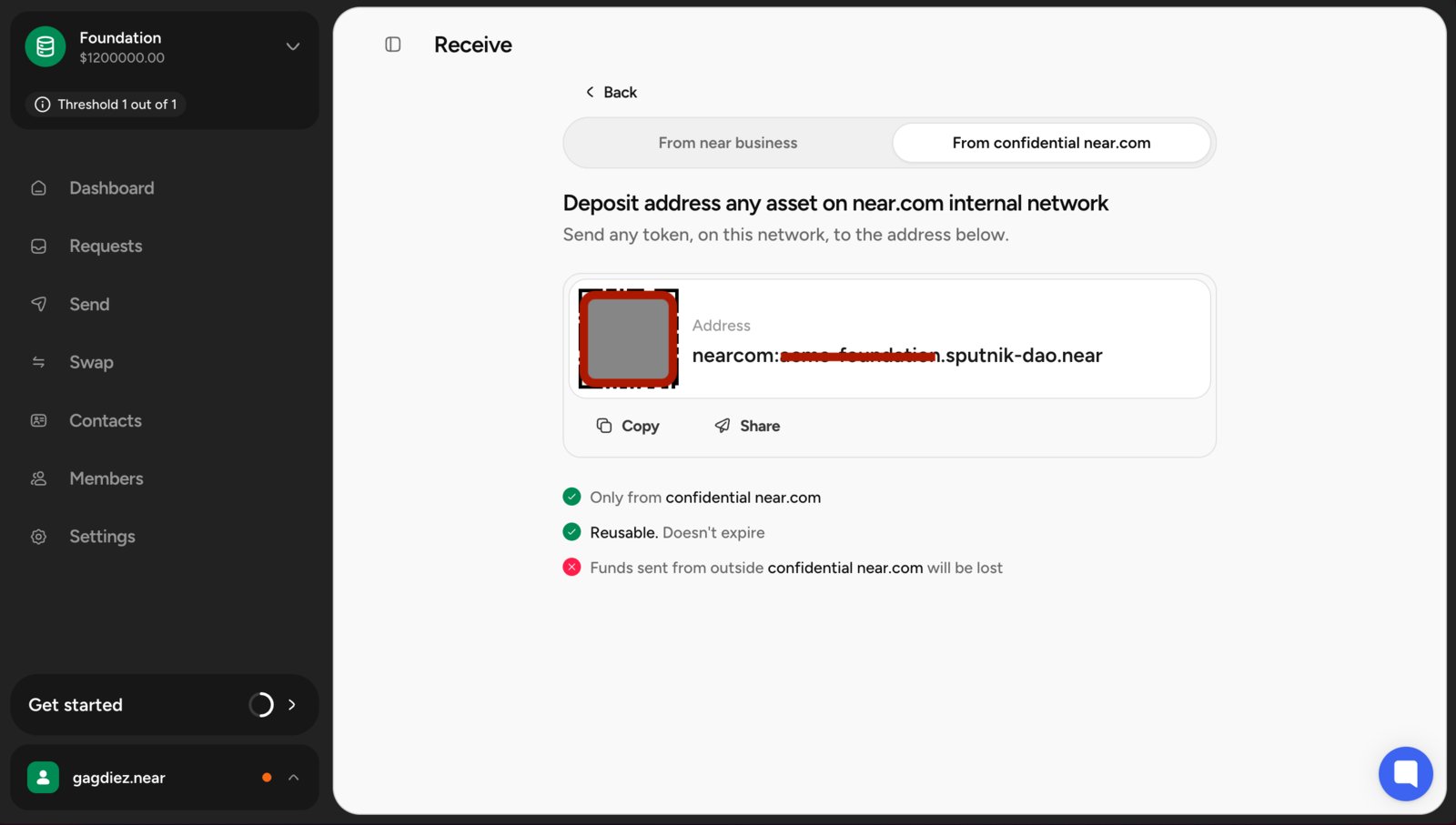
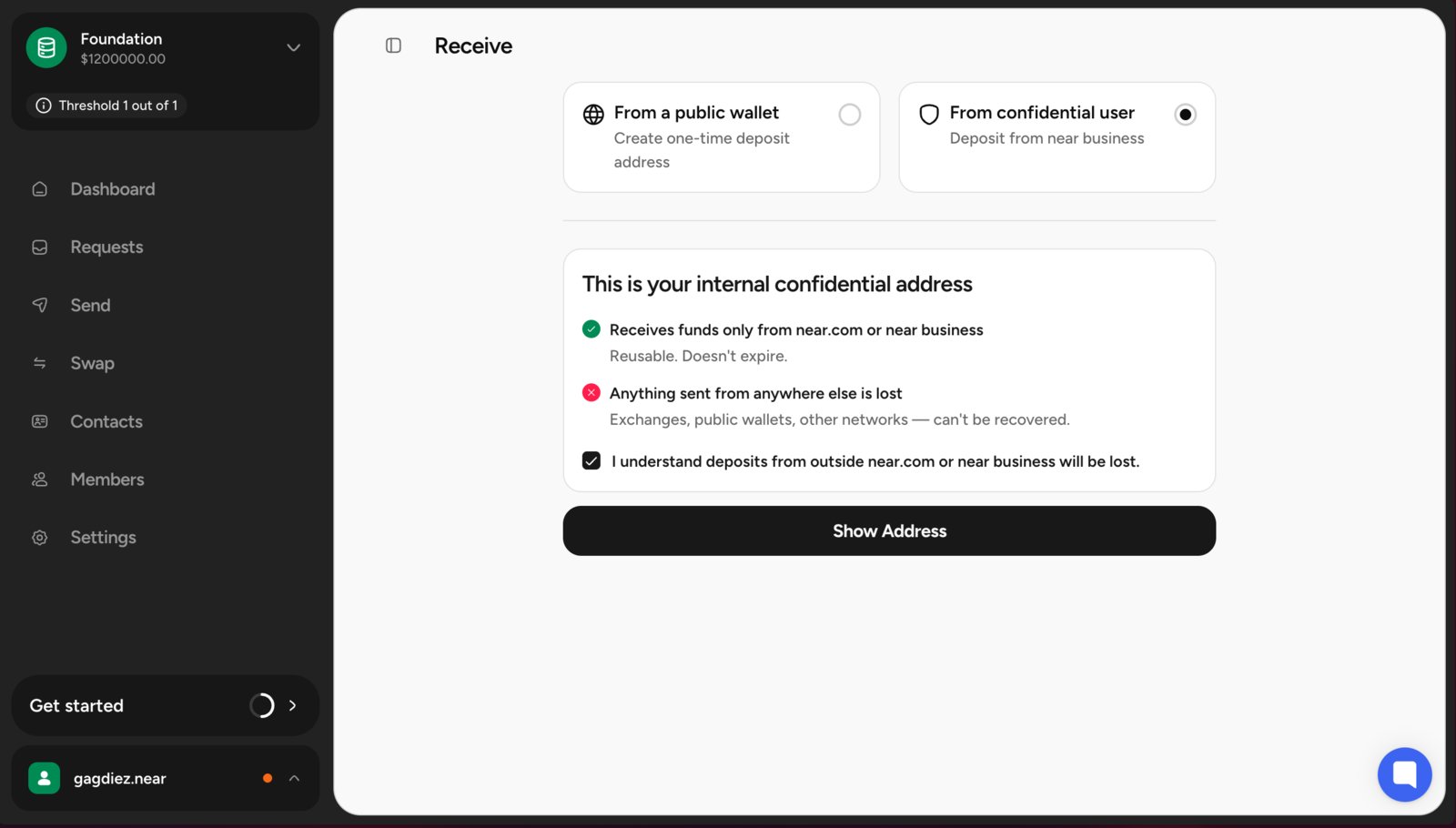 You will see a deposit address for your confidential treasury. Copy this address, as you will need it to send funds from your `near.com` account.
 ***
## Deposit Funds in near.com
Navigate to [near.com](https://near.com/) and connect with any of the supported wallets. Once connected, you will see the main dashboard where you can deposit and manage your assets.
Use the `Receive` option to deposit funds into your account. You can deposit from any external wallet.
***
## Deposit Funds in near.com
Navigate to [near.com](https://near.com/) and connect with any of the supported wallets. Once connected, you will see the main dashboard where you can deposit and manage your assets.
Use the `Receive` option to deposit funds into your account. You can deposit from any external wallet.
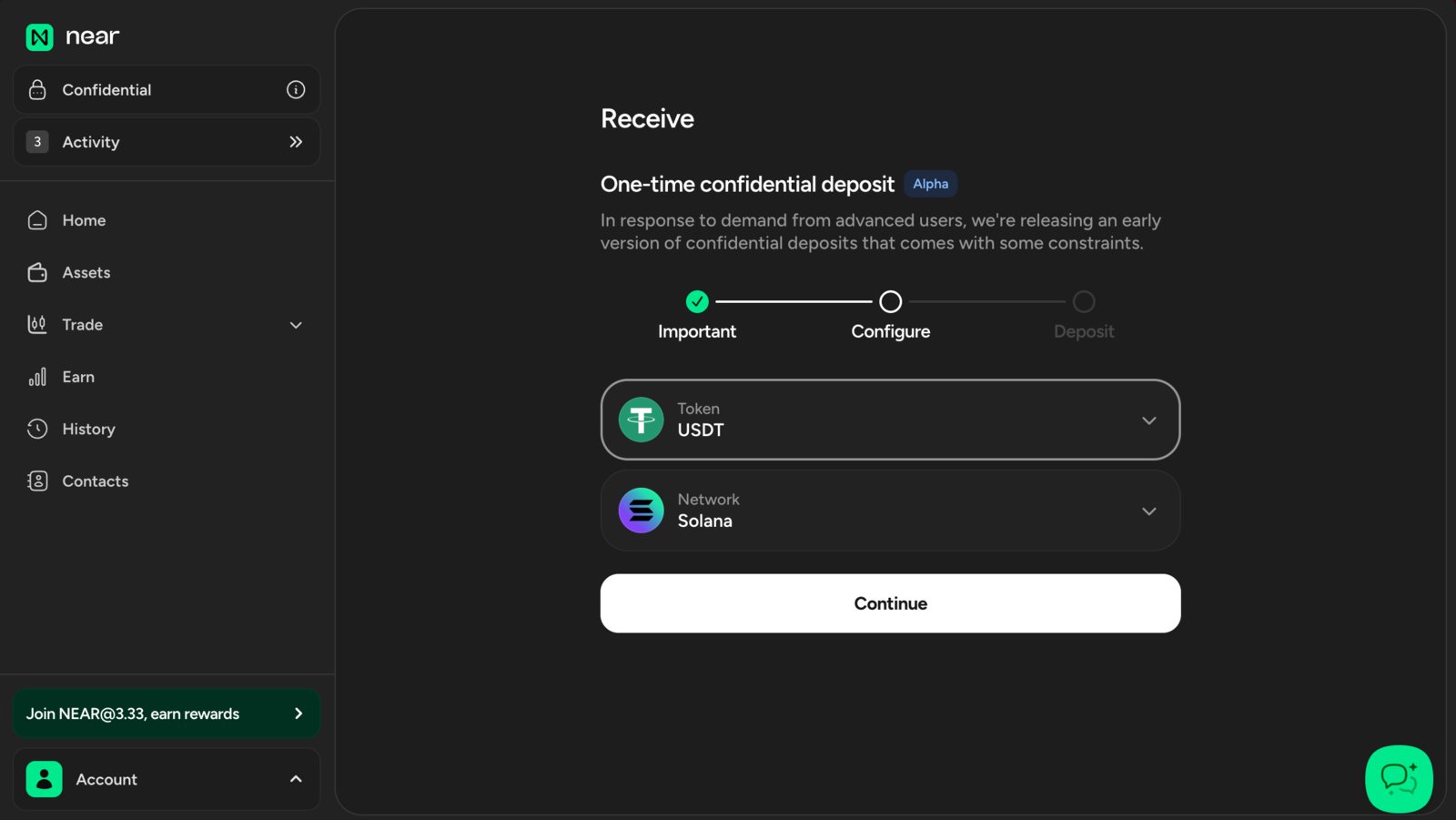 `near.com` allows you to log in with multiple wallets across different chains and supports multiple popular assets.
***
## Transferring to the Treasury
Once that deposit is complete, go back to the home screen and send the funds to the treasury. Click `Send` and select **another near.com account** as the **network destination**.
`near.com` allows you to log in with multiple wallets across different chains and supports multiple popular assets.
***
## Transferring to the Treasury
Once that deposit is complete, go back to the home screen and send the funds to the treasury. Click `Send` and select **another near.com account** as the **network destination**.
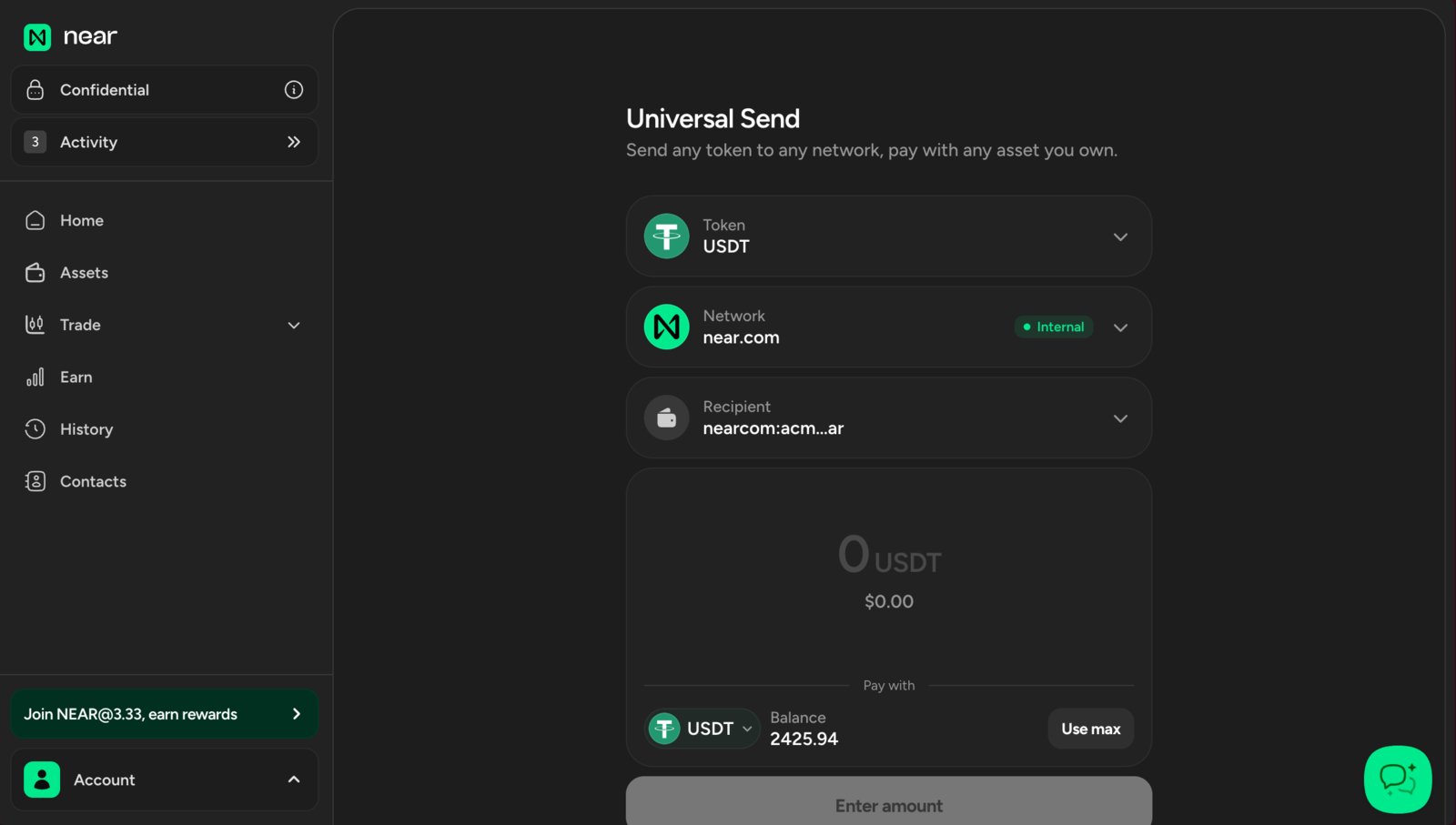 Select the token you want to send and enter the treasury's account ID as the destination. Once it completes, you will see the funds in your confidential treasury's [dashboard](https://business.near.com), ready to use for payments and swaps.
As [confidential treasuries](/confidential-treasuries) are deployed on `near.com`'s private shards, they are effectively `near.com` accounts.
Make sure to select **another near.com account** on the `Send` screen. Funds sent to other networks might be lost, and there is no way to recover them.
Select the token you want to send and enter the treasury's account ID as the destination. Once it completes, you will see the funds in your confidential treasury's [dashboard](https://business.near.com), ready to use for payments and swaps.
As [confidential treasuries](/confidential-treasuries) are deployed on `near.com`'s private shards, they are effectively `near.com` accounts.
Make sure to select **another near.com account** on the `Send` screen. Funds sent to other networks might be lost, and there is no way to recover them.