> ## Documentation Index
> Fetch the complete documentation index at: https://docs.business.near.com/llms.txt
> Use this file to discover all available pages before exploring further.
# Using a Ledger
> Learn how to set up and use a Ledger hardware wallet with NEAR Business
Hardware wallets are one of the most secure ways to manage your account. While a hardware wallet is not required to use NEAR Business, it is highly recommended for your most critical operational roles, such as `Finance` and `Governance`.
Learn more on how to keep your treasury safe using a Ledger device in our [**blog post**](https://trezu.org/blog/how-to-use-ledger-hardware-wallet).
***
## Setting Up Ledger with NEAR
1. Download and install [Ledger Live](https://www.ledger.com/ledger-live)
2. Connect your Ledger via USB or Bluetooth
3. Open the **Ledger Live** application and ensure your device firmware is up to date
4. In **Ledger Live**, install the **NEAR app** from the *App Catalog*
5. Open the NEAR app on your Ledger device (the screen should display *Application is ready*)
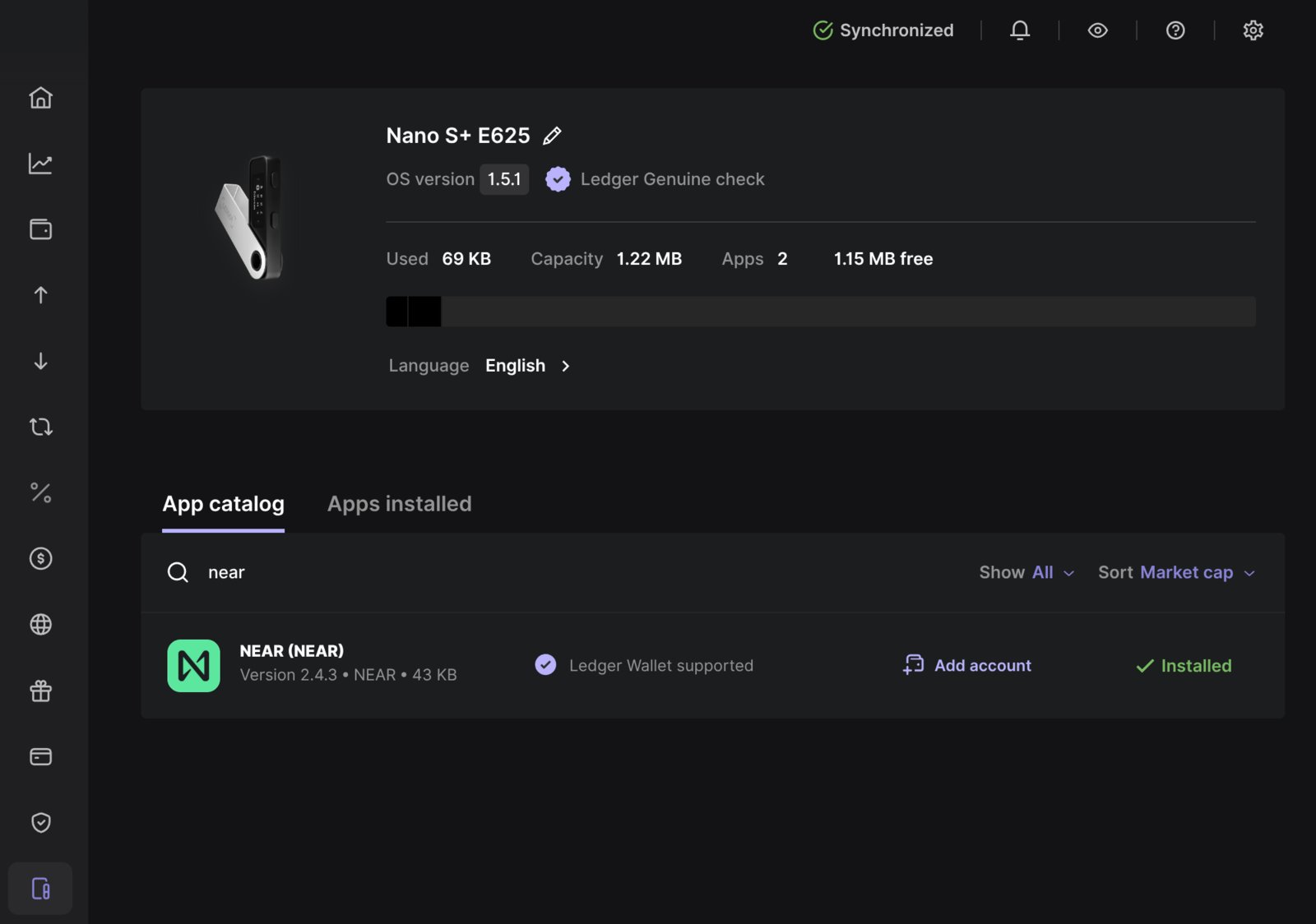
*NEAR app (v2.4.3) installed in Ledger Live*
Your Ledger is now set up, so you can use it when joining or creating a treasury.
***
## 1. Sign in to NEAR Business
Open [NEAR Business](https://business.near.com) and click **Login**.
1. Select the **Ledger** option
2. Choose between **USB** or **Bluetooth** connection depending on your device
3. Your device will prompt you to **confirm the connection** — approve it on the device
***
# 2. Select a Derivation Path
At this point, you will be prompted to select a `Derivation Path`, which determines which private key you want the Ledger to use when signing transactions through NEAR Business.
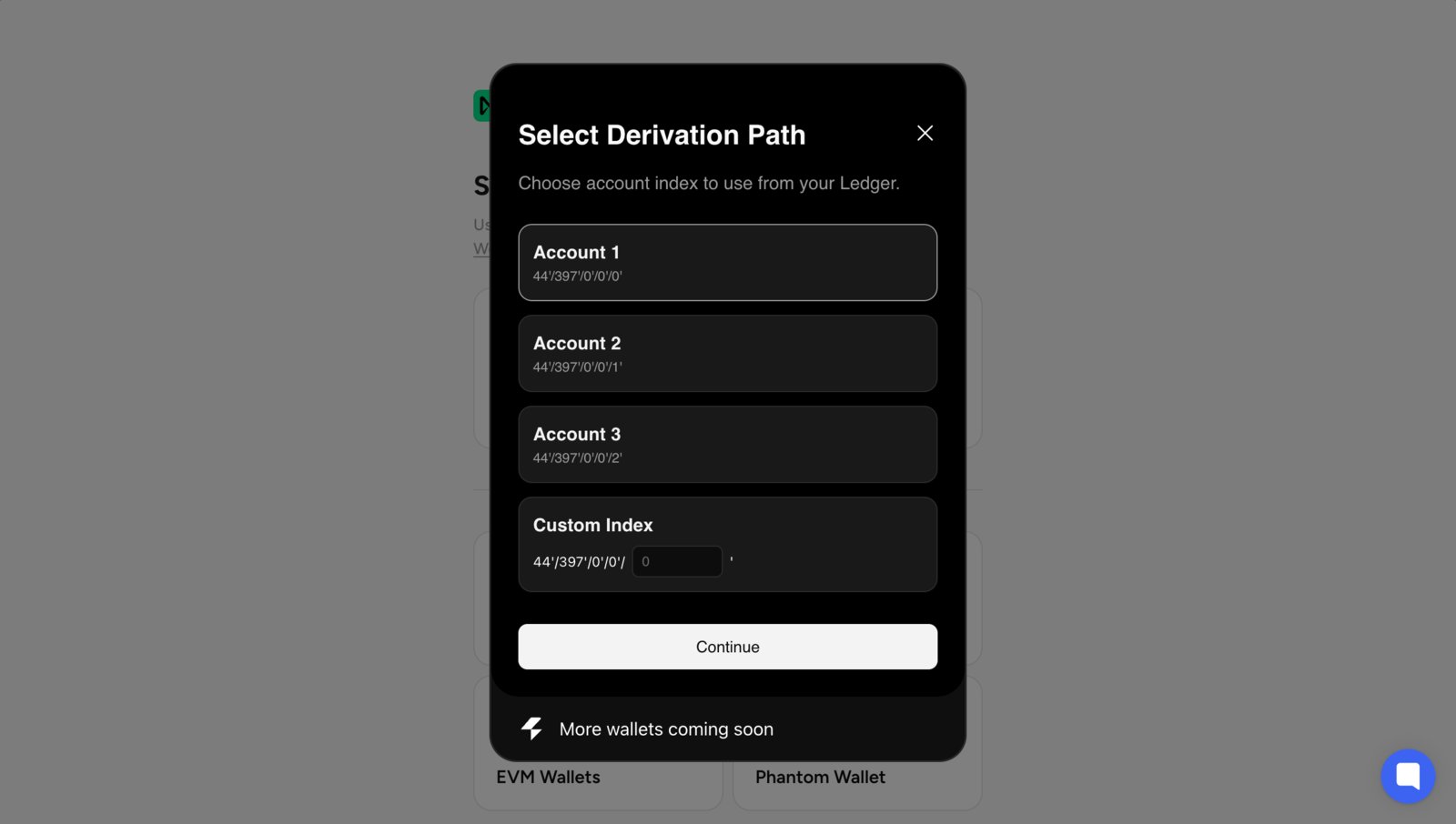 If you are **unsure** which one to select, do not worry—simply **select the first one** (`Account 1`).
Approve the selection on your Ledger device before proceeding to the next step.
***
## 3. Select an Account
Now that you have selected which `private key` you want to use, it is time to manually enter the `account` you want to log in with:
If you are **unsure** which one to select, do not worry—simply **select the first one** (`Account 1`).
Approve the selection on your Ledger device before proceeding to the next step.
***
## 3. Select an Account
Now that you have selected which `private key` you want to use, it is time to manually enter the `account` you want to log in with:
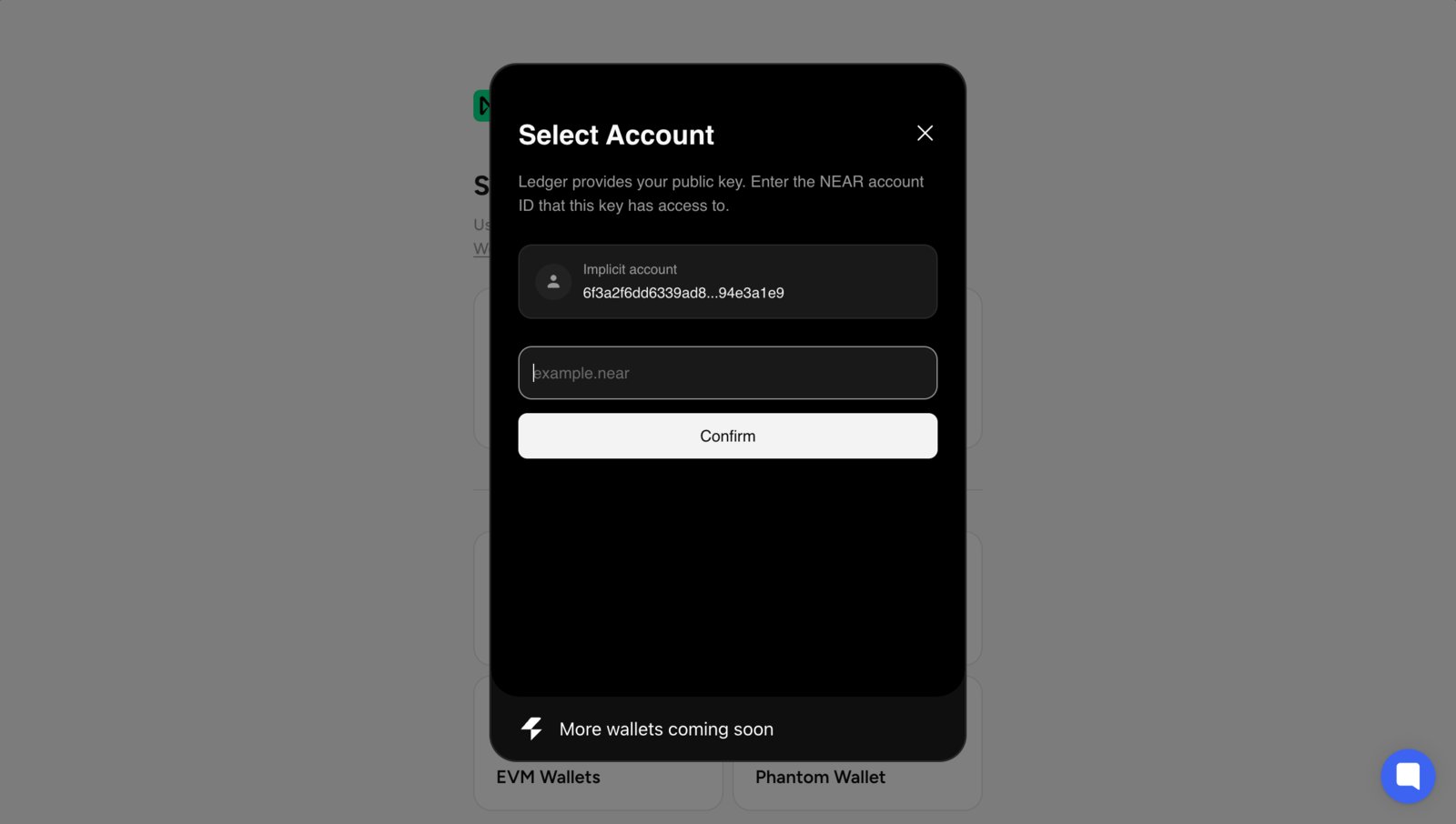 You can either use the `implicit account` derived directly from the selected `derivation path`, or input any other `accountId` of your choice.
If you are unsure which `accountId` to use, simply use the `implicit account`.
After confirming, you will see one of the following outcomes:
1. **Logged in successfully** — the account exists and matches the selected Ledger `private key`
2. **Create account option** — the account does not exist yet, so you can create it immediately
3. **Error message** — the account exists, but it is linked to a different Ledger `private key`
To avoid key mismatch errors, use the same derivation path that was originally used with that `accountId`.
**Advanced**
In NEAR, it is possible to add your Ledger `public key` to accounts that already exist; however, to do this you will need to use an external tool, such as the [NEAR CLI](https://docs.near.org/tools/near-cli).
***
## 4. You are in!
That's it! You are now signed in to NEAR Business using your Ledger hardware wallet. Do not worry if you do **not have funds** in the account yet — treasury creation and proposal interactions are sponsored.
You can now use NEAR Business as usual, with the added security that every action requires physical confirmation on your Ledger device.
Go ahead and [create a new treasury](https://business.near.com/app/new), or ask your team to add you as a member to an existing one!
You can either use the `implicit account` derived directly from the selected `derivation path`, or input any other `accountId` of your choice.
If you are unsure which `accountId` to use, simply use the `implicit account`.
After confirming, you will see one of the following outcomes:
1. **Logged in successfully** — the account exists and matches the selected Ledger `private key`
2. **Create account option** — the account does not exist yet, so you can create it immediately
3. **Error message** — the account exists, but it is linked to a different Ledger `private key`
To avoid key mismatch errors, use the same derivation path that was originally used with that `accountId`.
**Advanced**
In NEAR, it is possible to add your Ledger `public key` to accounts that already exist; however, to do this you will need to use an external tool, such as the [NEAR CLI](https://docs.near.org/tools/near-cli).
***
## 4. You are in!
That's it! You are now signed in to NEAR Business using your Ledger hardware wallet. Do not worry if you do **not have funds** in the account yet — treasury creation and proposal interactions are sponsored.
You can now use NEAR Business as usual, with the added security that every action requires physical confirmation on your Ledger device.
Go ahead and [create a new treasury](https://business.near.com/app/new), or ask your team to add you as a member to an existing one!