

Setting Up Ledger with NEAR
- Download and install Ledger Live.
- Connect your Ledger via USB or Bluetooth.
- Open the Ledger Live application and ensure your device firmware is up to date.
- In Ledger Live, install the NEAR app from the
App Catalog. - Open the NEAR app on your Ledger device. The screen should display
Application is ready.
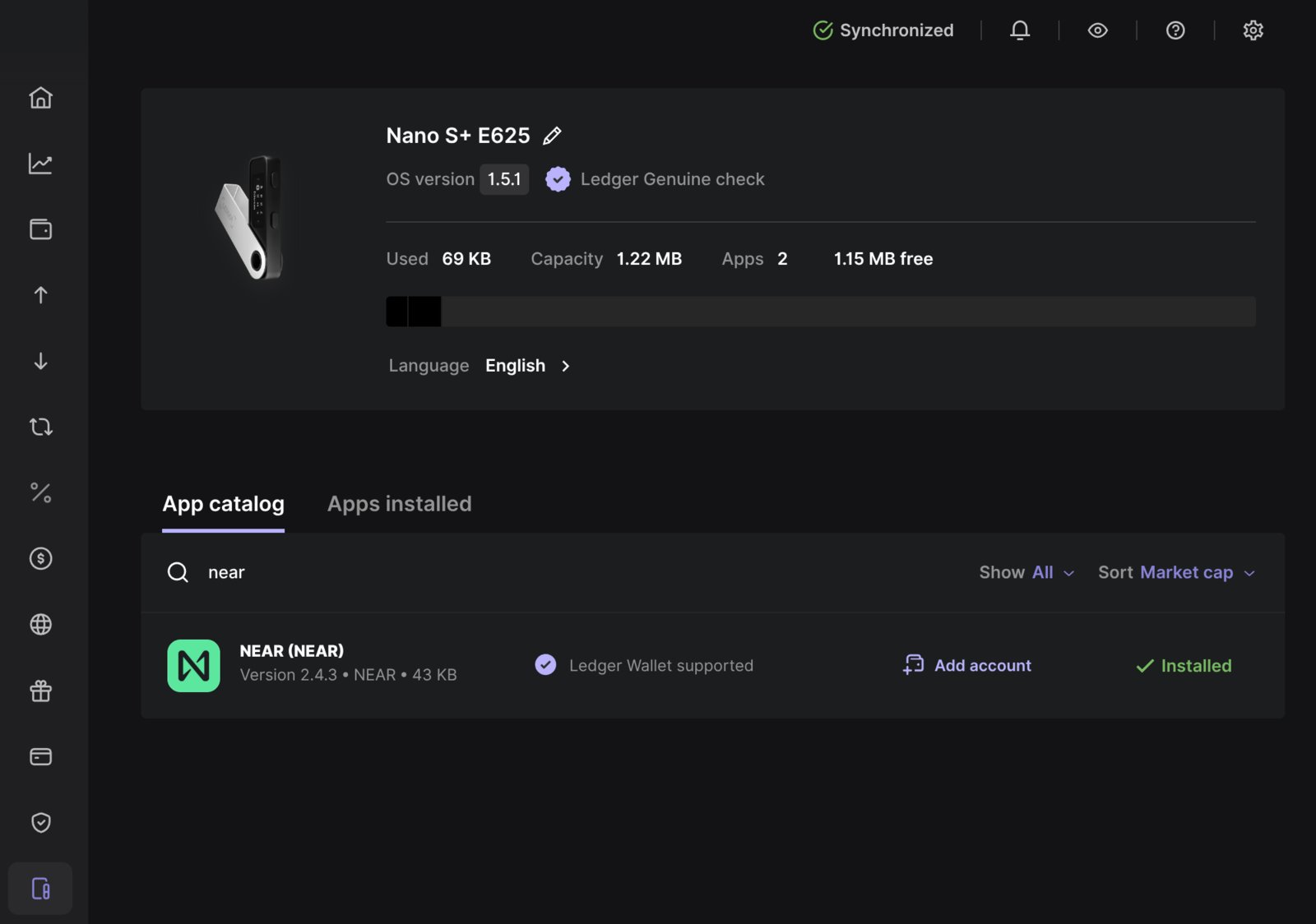
NEAR app (v2.4.3) installed in Ledger Live
Your Ledger is now set up, so you can use it when joining or creating a treasury.1. Sign In to NEAR Business
Open NEAR Business and clickLogin.
- Select the
Ledgeroption. - Choose a
USBorBluetoothconnection, depending on your device. - When your device prompts you to confirm the connection, approve it on the device.
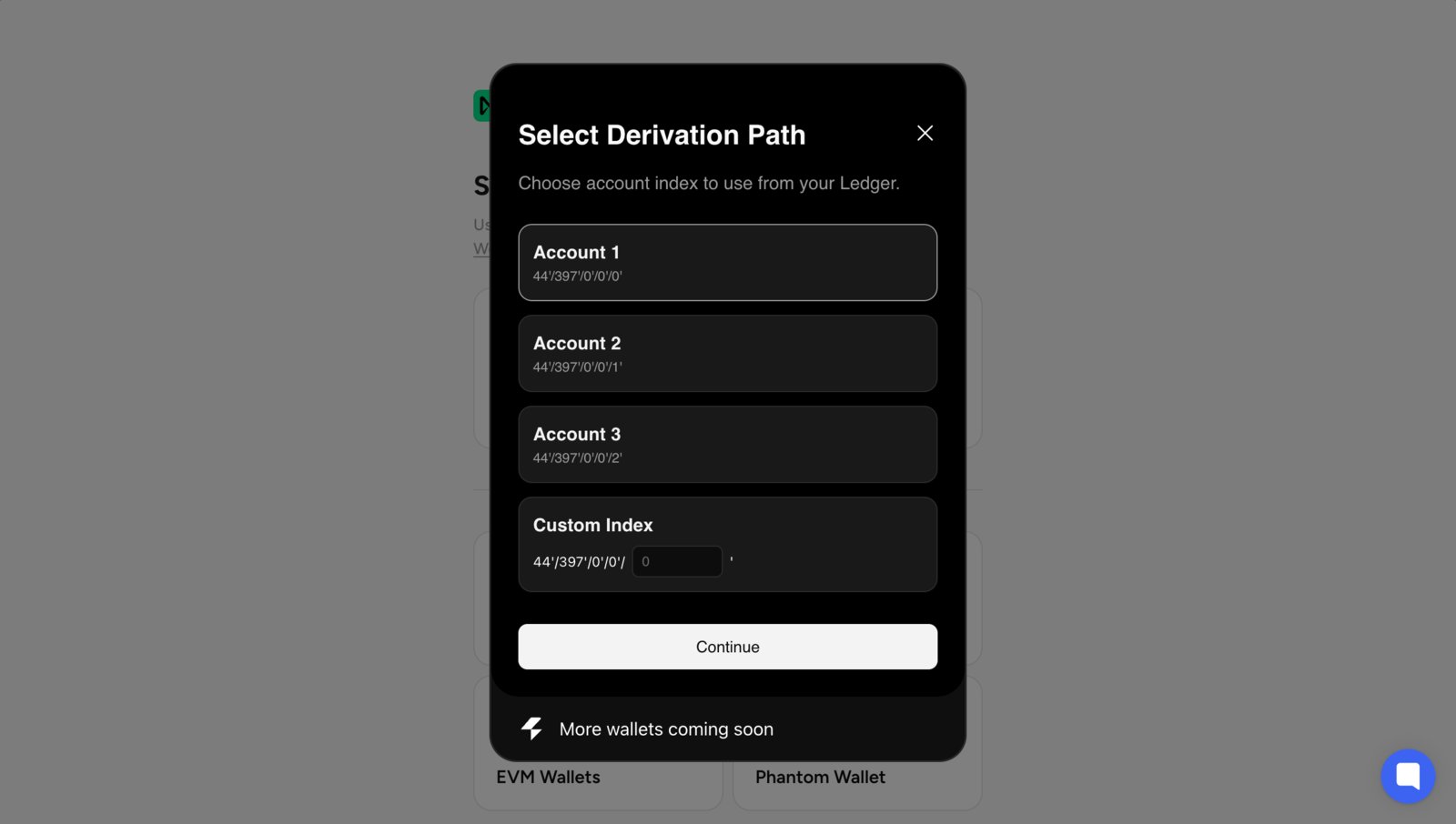
2. Select a Derivation Path
At this point, you will be prompted to select aDerivation Path, which determines which private key the Ledger uses when signing transactions through NEAR Business.
3. Select an Account
Now that you have selected which private key to use, manually enter the account ID you want to use to log in: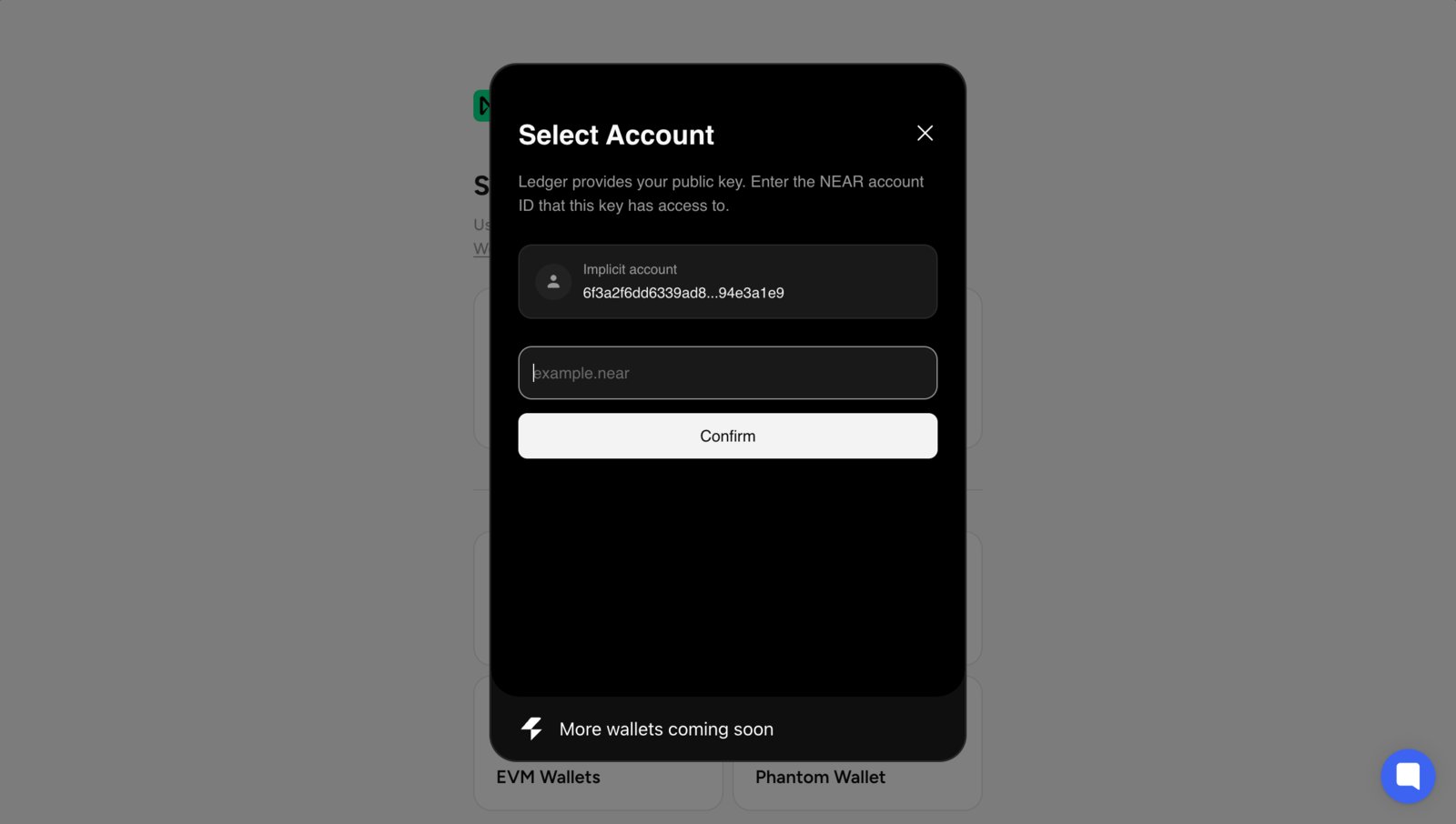
- Logged in successfully—the account exists and matches the selected Ledger private key.
- Create account option—the account does not exist yet, so you can create it immediately.
- Error message—the account exists, but it is linked to a different Ledger private key.
AdvancedIn NEAR, you can add your Ledger public key to an existing account. However, you will need to use an external tool, such as the NEAR CLI.